Boss Fight: Research Agent
The Scenario
Section titled “The Scenario”You’re building a Research Agent — a terminal program that autonomously researches a topic, summarizes results, and saves them after human approval. The agent combines all five building blocks from Level 3.
Your agent should feel like this:
Research: What new features does TypeScript 5.8 have?
[TOOL] search("TypeScript 5.8 features")  → 3 results found
[TOOL] search("TypeScript 5.8 release notes")  → 2 results found
[TOOL] summarize(...)  → Summary created
--- Approval Request ---Agent wants to execute saveResults("/tmp/research-typescript-5.8.txt").Allow? (y/n): yApproved.
[TOOL] saveResults("/tmp/research-typescript-5.8.txt")  → File saved
=== Result ===TypeScript 5.8 brings the following new features: ...(3 steps, 4 tool calls, 847 tokens)
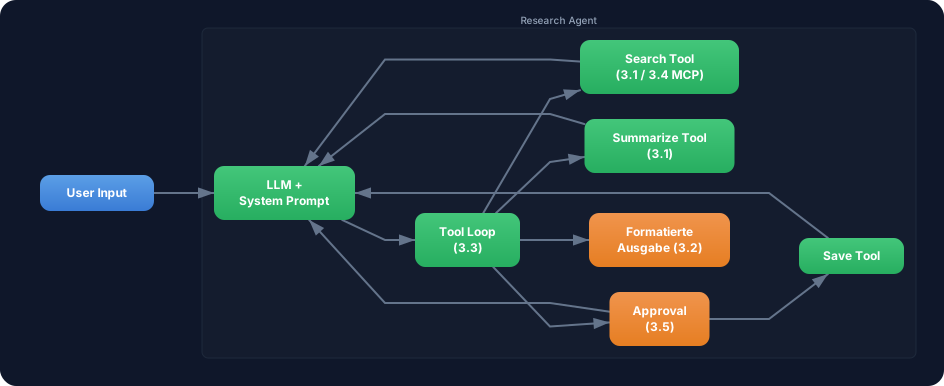
This project connects all five building blocks:
Requirements
Section titled “Requirements”-
Search Tool (Challenge 3.1 or 3.4) — The agent has a
searchtool that finds information on a topic. You can build it as a local tool with simulated results or connect it as an MCP tool (bonus). -
Summarize Tool (Challenge 3.1) — A
summarizetool that condenses collected information into key points. -
Save Results Tool with Approval (Challenge 3.5) — A
saveResultstool withneedsApproval: truethat saves the results to a file. The user must confirm in the terminal. -
Agentic Loop (Challenge 3.3) — The agent uses
stopWhen: stepCountIs(n)and autonomously decides which tools to call in which order. -
Formatted Output (Challenge 3.2) — Every tool call and tool result is displayed formatted in the terminal. The user sees in real time what the agent is doing.
-
System Prompt — The agent has a defined role: “You are a research agent. Research thoroughly, summarize, and save the results.”
-
Agent Trace — At the end, a summary is displayed: number of steps, all tool calls, token usage.
-
Interactive Input — The user enters the research topic in the terminal. “exit” quits the program.
File: boss-fight-3.ts | Run: npx tsx boss-fight-3.ts
Starter Code
Section titled “Starter Code”import { generateText, tool, stepCountIs } from 'ai';import { anthropic } from '@ai-sdk/anthropic';import { z } from 'zod';import * as readline from 'readline';
// TODO: Define system prompt
// TODO: Define searchTool (local or MCP)
// TODO: Define summarizeTool
// TODO: Define saveResultsTool (with needsApproval: true)
// TODO: askUser() helper function for terminal approval
// TODO: Main function:// 1. Read user input (readline)// 2. generateText with all tools, stopWhen, toolCallApproval// 3. Output tool events formatted (onStepFinish)// 4. Display agent trace (steps, tool calls, tokens)Evaluation Criteria
Section titled “Evaluation Criteria”Your boss fight is passed when:
- At least 3 tools defined (search, summarize, saveResults)
-
saveResultshasneedsApproval: true— user is asked before saving -
stopWhen: stepCountIs(n)limits the steps -
toolCallApprovalhandler asks for approval in the terminal - Agent uses tools autonomously in a sensible order (first search, then summarize, then save)
- Every tool call is displayed formatted in the terminal (name, parameters, result)
- At the end: summary with steps, tool calls, and token usage
- Program runs interactively and responds to user input
Hint 1: Tool descriptions are crucial
The description of the tools strongly influences the order in which the LLM uses them. Phrase the descriptions so it’s clear: search is for gathering information, summarize is for summarizing collected data, and saveResults is for saving at the end. The system prompt can additionally guide the order: “Research first, then summarize, save at the end.”
Hint 2: onStepFinish for live output
Use onStepFinish for formatted output during agent execution. In this callback you have access to stepNumber, toolCalls, toolResults, and usage. You can write each tool call with its result formatted to the terminal there.
Hint 3: Approval on rejection
When the user rejects a tool call (return 'reject'), the LLM receives the information that the tool call was rejected. It can then react — e.g. output the results as text anyway without saving them. Test both paths: approval and rejection.